
Wonde Australia: How to setup integration
Preamble
This document outlines the step-by-step process for synchronising data from Wonde to Parents’ Meetings module in Australia, enabling users to download the necessary information efficiently and accurately. Wonde integration will allow to connect your nominated MIS/SIS admin system to Wonde so the data can be imported to Parents' Meetings.
Wonde securely connect school Student Information Systems (SIS/LMS) with third‑party educational applications, ensuring data is accurate, up‑to‑date and easy for schools to control. Please confirm with your school's system administrator or the Wonde team whether Wonde is an approved integration for your school.
This document includes technical information, so you may need support from your school’s IT or system administrator during the process.
Step 1: Wonde connection request
During onboarding, we’ll send a Wonde connection request to the contact your school has listed for the Parents' Meetings product. The Wonde support team will help you approve the connection and log in to the Wonde portal. From there, you’ll be able to see the connection details, including the type of data shared from your school’s SIS to Wonde and the Parents' Meetings module. Please check with your school to confirm that Wonde is an approved system.
If you haven’t received the connection request, or if you’d prefer to set up Wonde later, you can reach us at customer.supportau@tes.com.
Please refer to our manaul import user guide here if you do not wish to proceed with Wonde integration.
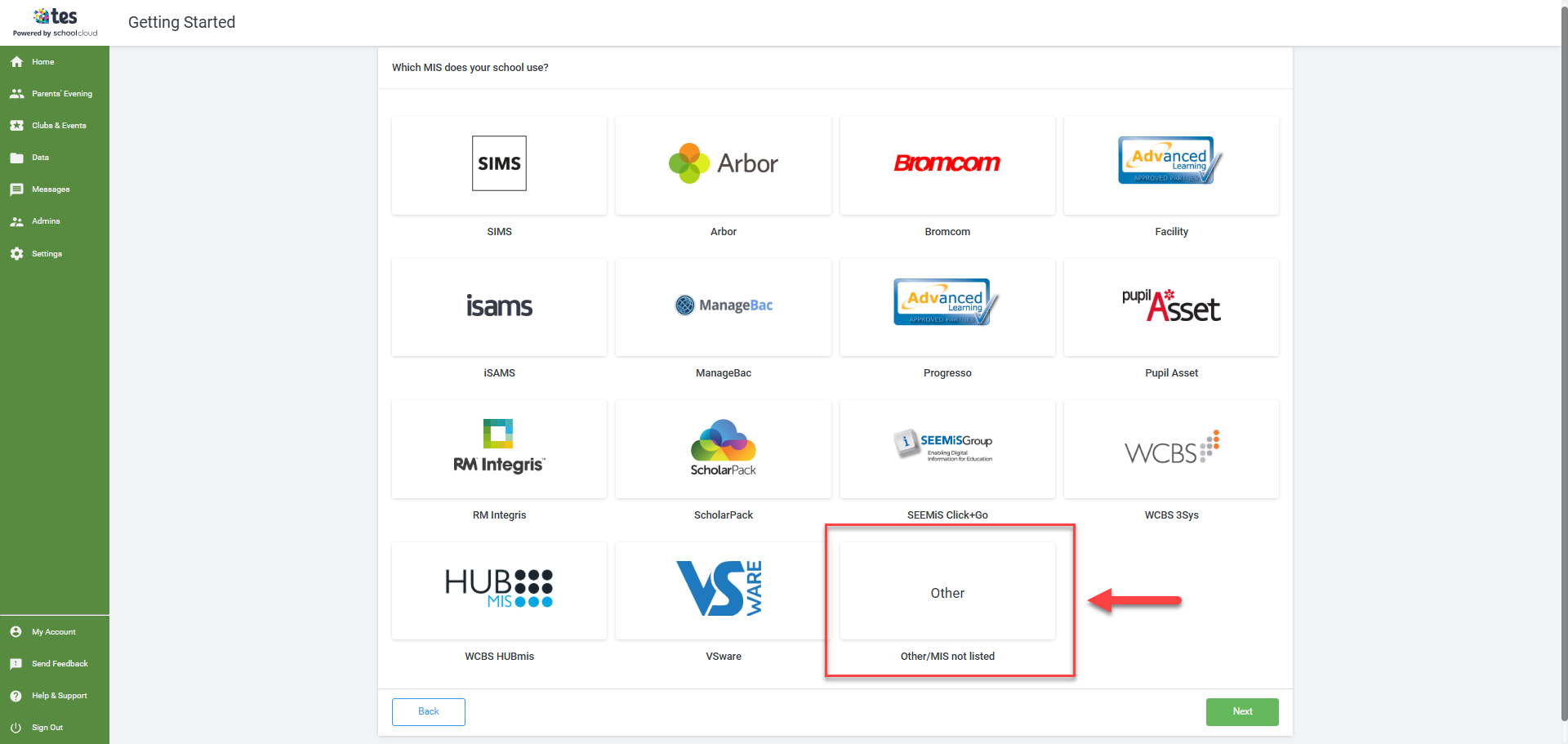
When you first log in to Parents' Meetings module you’ll be met with the Getting Started screen which will guide you through setting up your branding and and your data import option. Please select Other/MIS not listed from the list and proceed with the rest of the branding setup. Your Wonde connection setup will be completed by Tes and Wonde, We will notify you once the process has been completed in accordance with the steps outlined below.
Step 2: Data import Source
Wonde Setup
Once the nominated contact in school has approved the connection, Tes will automatically receive the approved notification email with connection details to proceed. Tes customer support team will setup the Wonde connection in your school's Parents' Meetings account on your behalf and once the connection has been established, we will send out the confirmation email along with the user guide on how to proceed to the next step.
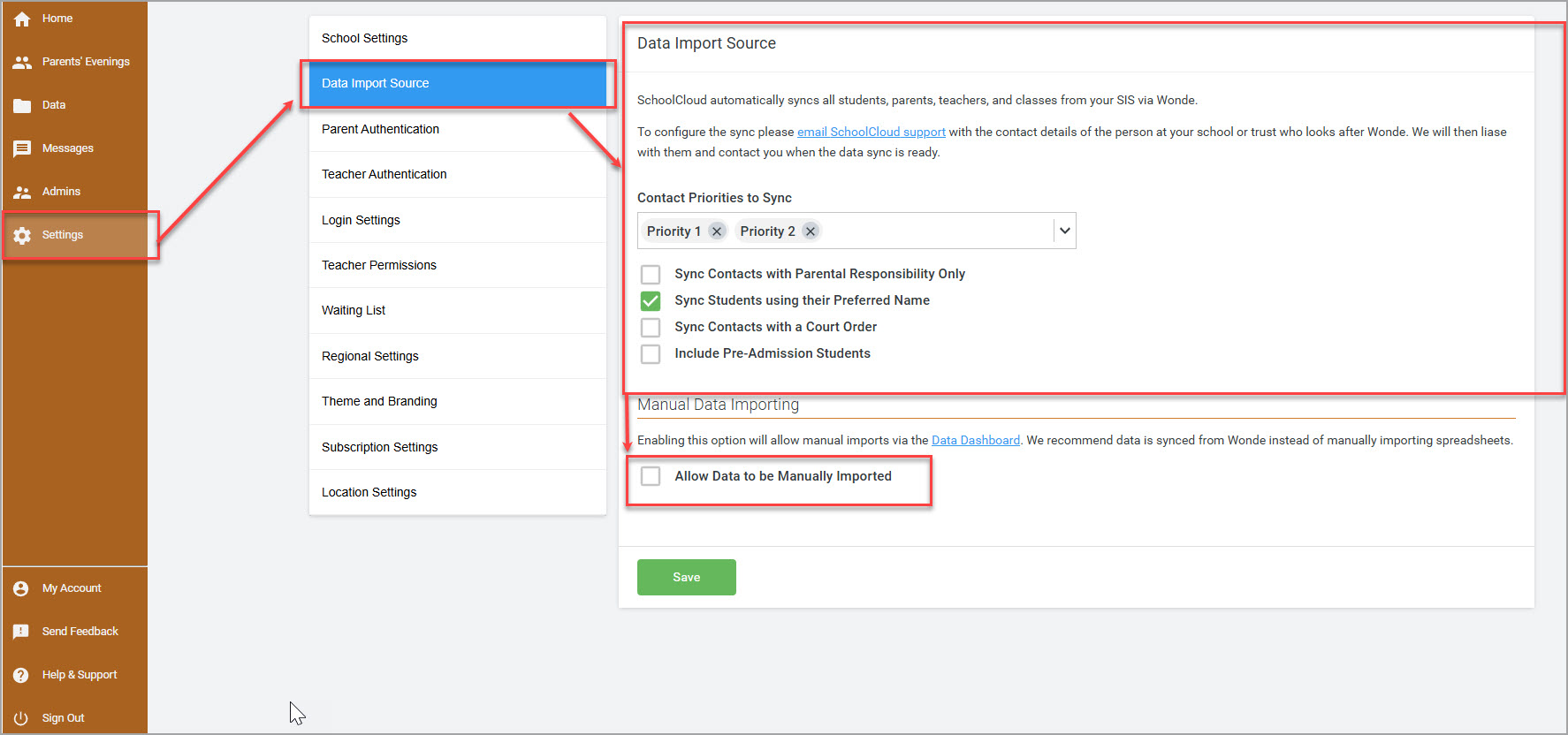
School can check the Wonde setup by going to Settings >Data Import Source. You will see pre-selected options such as your contact priority and other options around your preferences on syncing the contacts.
It is very important that selected data types including contact priorities are mapped in to the correct fields in your admin system MIS/SIS through Wonde connection and that those fields are not empty, In most cases if the field is empty or not mapped in to the correct field the entire sync in Parents' Meeting will fail. For more information around data fields and their mapping please check with your Wonde at support@wonde.com or your school system administrator responsible for Wonde connection.
-
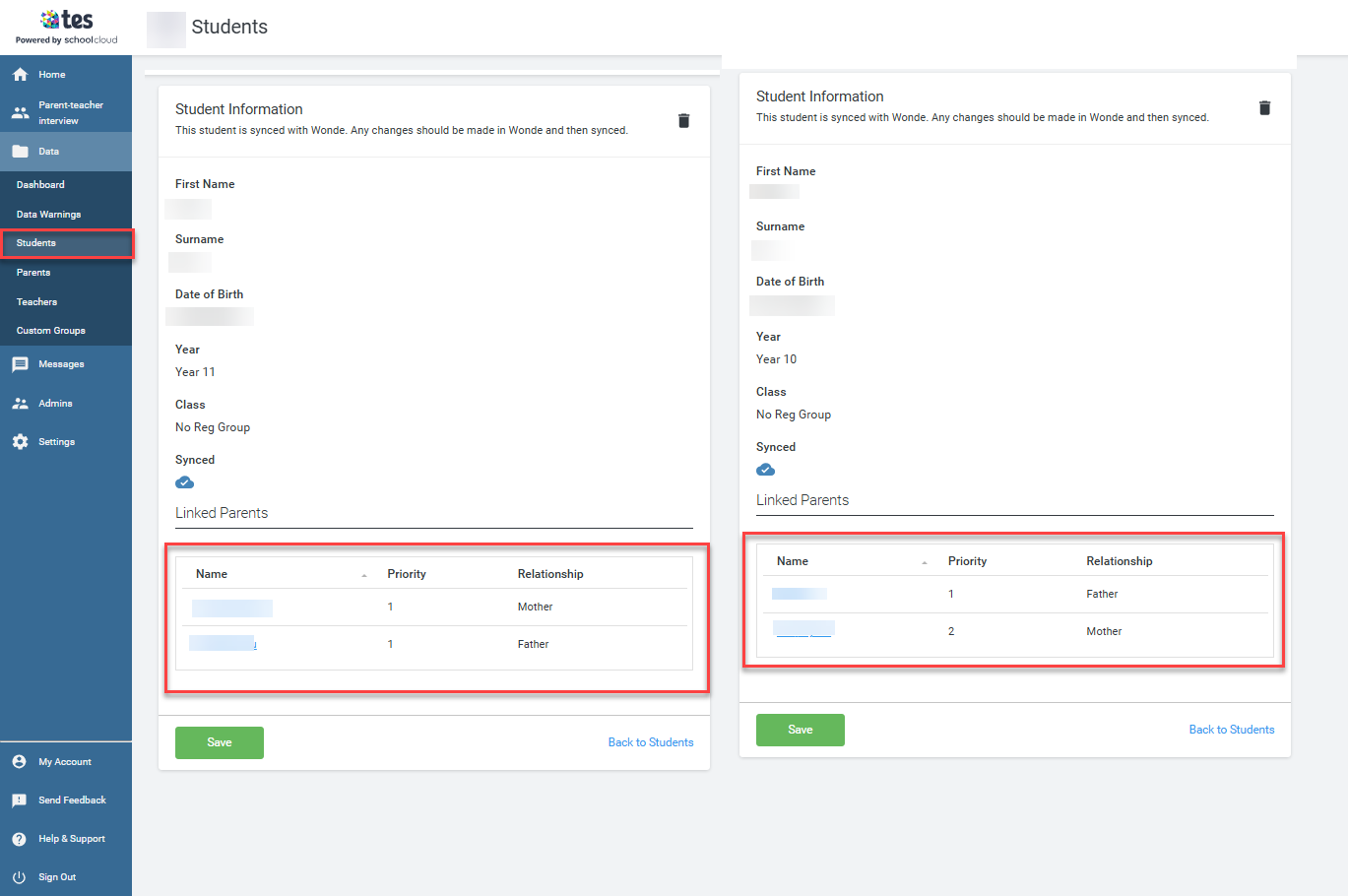
Contact Priorities (Priority 1, Priority 2): Contact priorities refer to the parents linked to the child. Priority 1 is the primary contact, and Priority 2 and onwards are the additional contacts. By default both Priority 1 and Priority 2 is selected, additional priorities can be selected from the dropdown by school and in your MIS, each contact will be assigned a priority, which determines how many of them will be included in the data pull. The field must contain data in your your admin system otherwise no data will be imported and often may result in failed sync.
There are two areas in Parents’ Meetings where this flag could be useful:- When the school sends reminders to parents. In the reminder settings, you can choose which priority level to send the reminder to.
-
When the school books appointments on behalf of parents. The flag will appear next to each parent so staff can easily identify it.
Below screenshot is how it would look if the fields are mapped with Wonde and your admin system and imported to Parents' Meetings module.
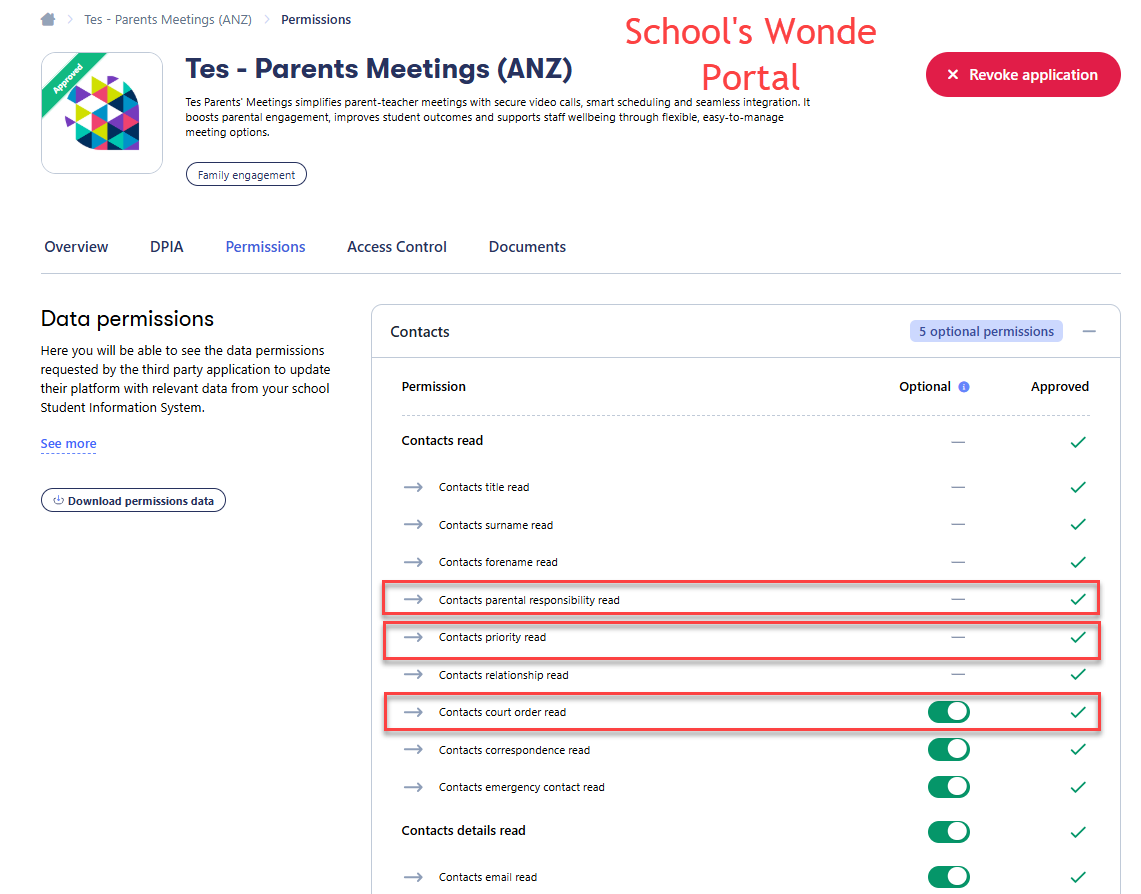
- Sync Contacts with Parental Responsibility Only: If this option is ticked then it will only sync and import data that has parental responsiblity ticked in your admin system. This option is linked to the field in Wonde called "Contacts parental responsibility read" which Wonde will pull the information from the linked field of your connected admin system (MIS/SIS), Please check with Wonde or your system administrator to confirm what field in specifc has been connected with Wonde. The field must contain data in your your admin system otherwise no data will be imported and often may result in failed sync.
- Sync Students using their Preferred Name: Ticking this option will sync students preferred name instead of legal name, the preferred must exist in the SIS Admin system. Please check with Wonde or your system administrator to confirm what field in specifc has been connected with Wonde. The field must contain data in your your admin system otherwise no data will be imported and often may result in failed sync.
- Sync Contact with a Court Order: Ticking this option will sync contact with a court order that has been flagged in your nominated SIS/MIS Admin system.
-
Include Pre-Admission Student: Students who are starting in the next academic year and are marked as pre-admission in the schools SIS/MIS Admin system. We believe this functionality is not being mapped to any of the field in Wonde under the Australian region.
Below screenshot is school's wonde portal account, please check with your Wonde's nominated point of contact at your school if you wish to to have access and explore the option. Normally the IT/system administrator at your school would be the Wonde portal admin.
Manual Data Importing
If School wishes to do a manual import instead then they can proceed with ticking the box "Allow Data to be Manually Imported", Please refer to our onboarding email on manual import templates and user guides if you do not want to proceed with Wonde integration.
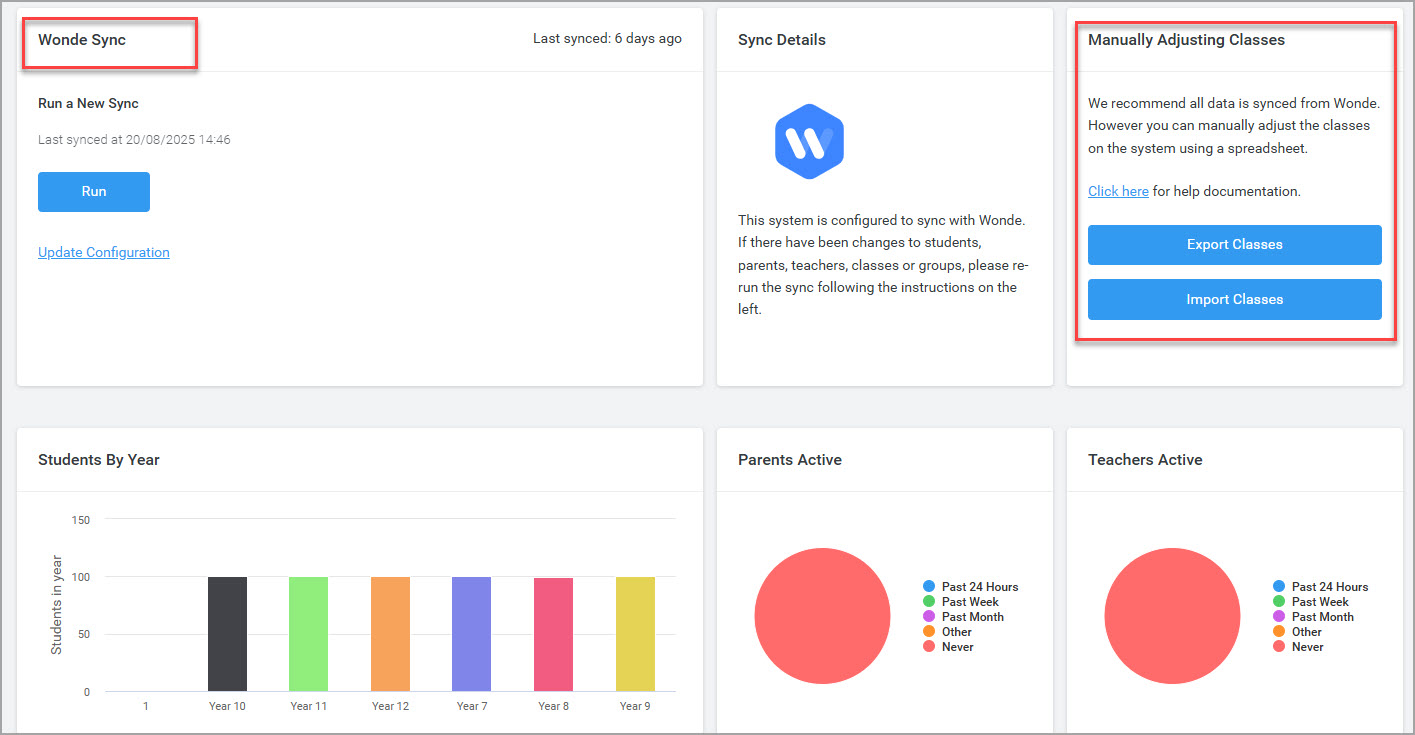
The screenshot below illustrates how the settings appear when only Wonde is configured under the settings:
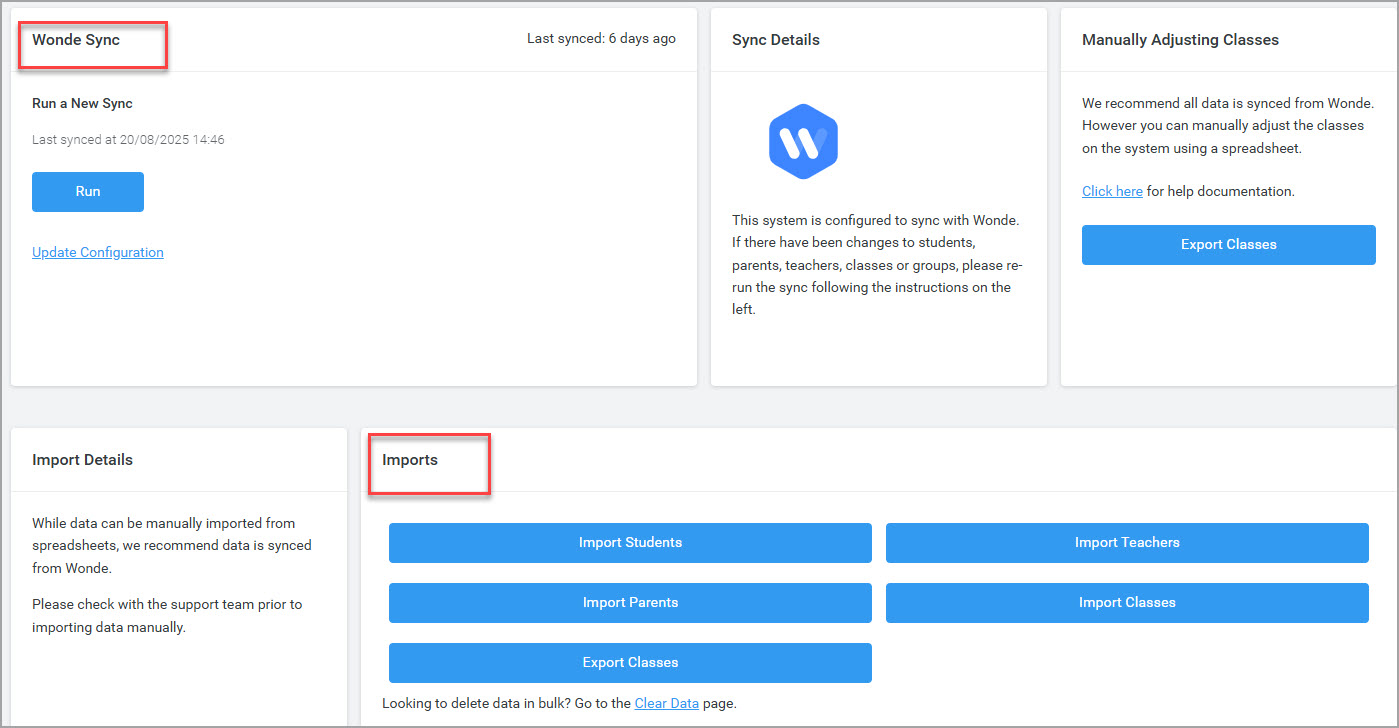
The following screenshot demonstrates how the settings appear when both options – Manual Data Import and Wonde Sync are selected.:
Step 3: Data Dashboard (Syncing data)
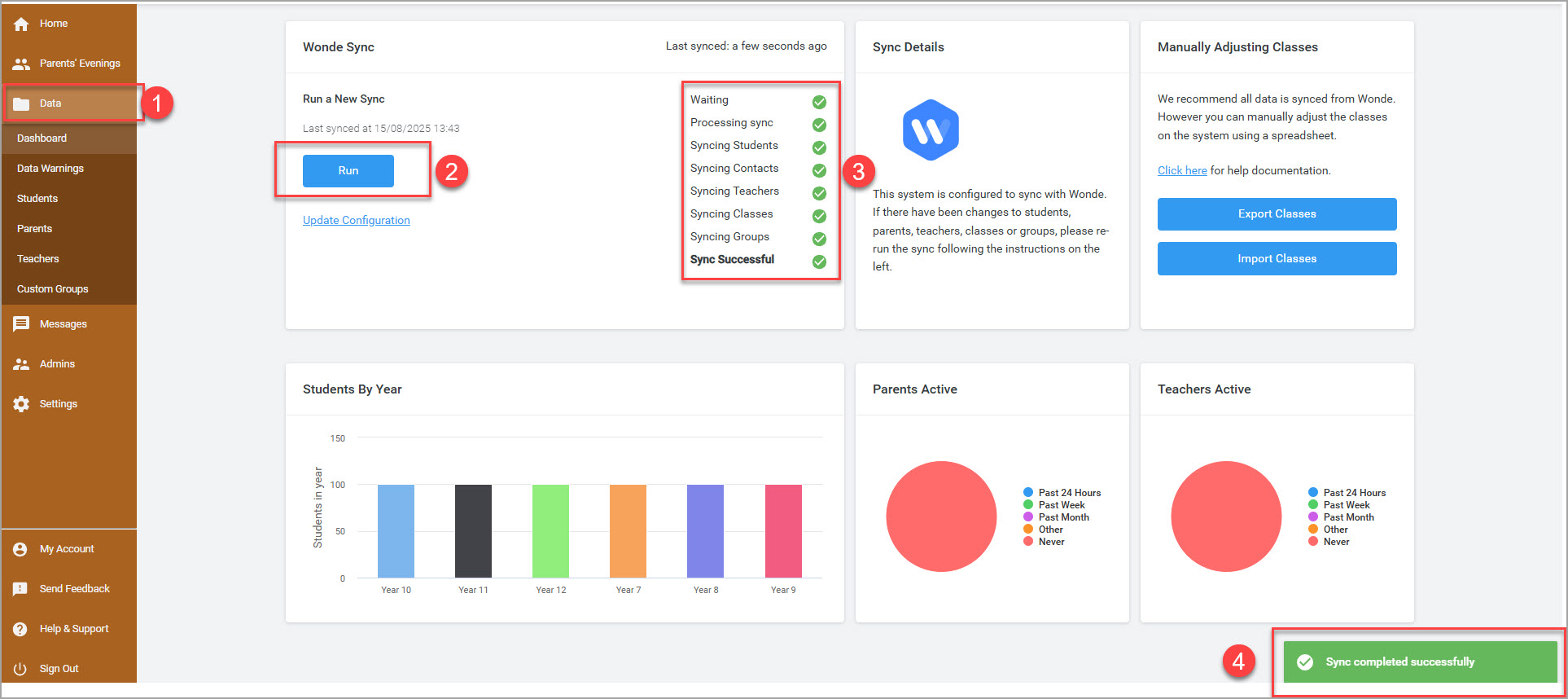
Once the set up in the setting>Data Import Source has been confirmed, please go the Data Dashboard on the left panel.
- Click on the Data.
- You will notice blue button 'Run' is visible.
- Click on the button 'Run' to perform a sync and download the data from Wonde to Parents' Meetings Module. Once the sync is successfully completed, you will notice data that has been pulled from the Wonde and with green ticks. In the event of an error, please ensure that the relevant data has been properly enabled for import into the Parents’ Meetings module in Wonde portal, as missing or restricted data may prevent successful synchronisation.
- Sync completed Successfully.
For any questions related to Wonde, such as the process of connecting your SIS to Wonde, configuring data permissions, or determining which data can be shared or restricted, please contact Wonde directly. As the source of the data, Wonde is responsible for managing these aspects, while the Tes Support Team is only responsible for establishing the connection. For Wonde assistance, please reach out to Wonde Support at support@wonde.com.
Step 4: Check the Imported Data
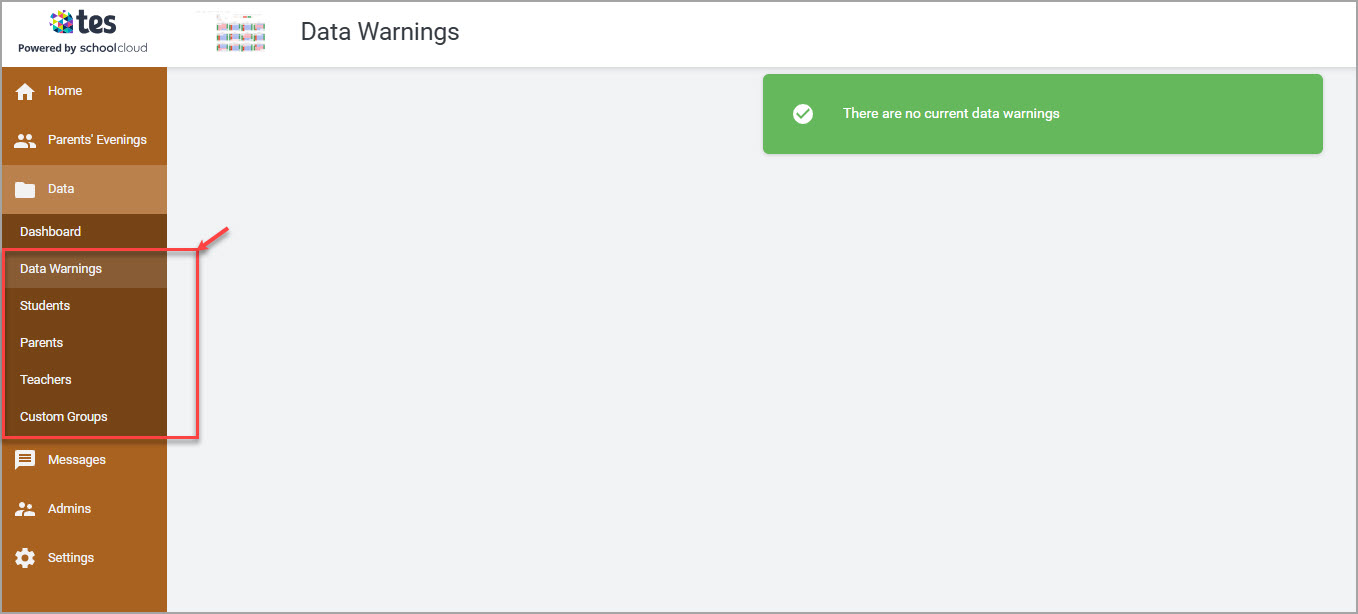
Once the data has been successfully imported into the Parents’ Meetings module, please review the Data Warnings, Students, Parents, and Teachers sections to confirm that all information has been accurately imported.
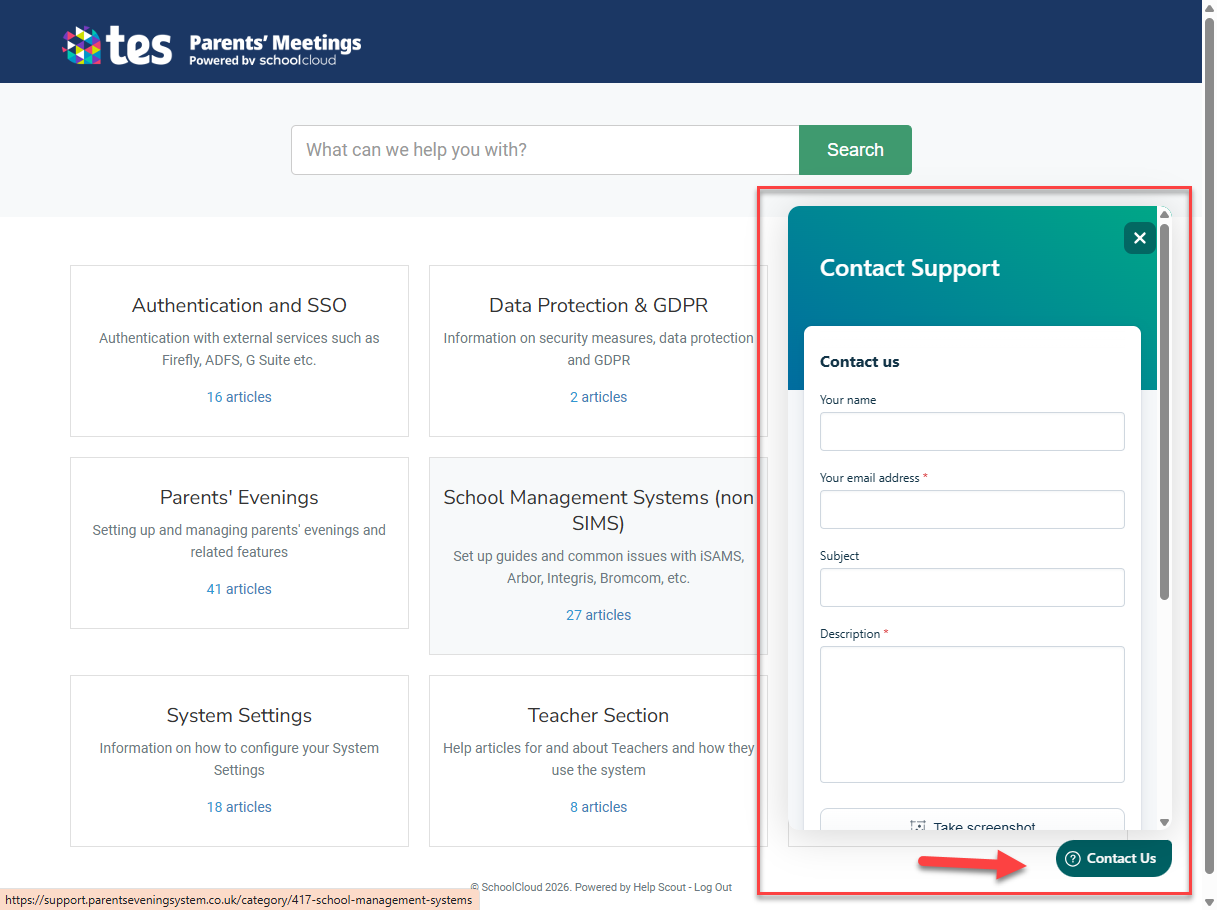
If you need further assistance, please contact us through the Help & Support section located in the left-hand panel. From there, select Parents’ Meetings and click on Contact Us in the bottom-right corner of the screen to reach our support team.
Frequently Asked Question
Question: I have recently added a new teacher/student in my admin system e.g. Sentral; however, after performing a sync, the updated data does not appear to be transferring across to the Parents’ Meetings.
Answer: The data will automatically transfer to the Parents’ Meetings module after some time. However, if you would like the data to be synchronised immediately, please contact Wonde to facilitate this request.